Getting started
This page assumes clankerwatch is installed and Claude Code is signed in on the same user account. If you have never used Claude Code on this machine, run claude in a terminal and sign in with /login first.
First run
Add Clanker Watch to a panel: right-click the panel, choose Add Widgets, and add it. That is the whole setup. There is no service to enable and no login to enter.
What happens next:
- The widget reads the daemon’s properties on the D-Bus session bus.
- Nothing owns the bus name
com.nickfedor.ClankerWatch1yet, so D-Bus asks systemd to startclankerwatch.service, which runsclankerwatch serve. - The daemon loads its saved state, reads Claude Code’s files, and publishes a first snapshot before it touches the network. If Claude Code has cached usage recently, the bars appear at once.
- With no earlier data, the daemon makes its first request to the usage endpoint about 10 seconds after it starts. From then on it follows the schedule.
Check that the daemon is running and what it would show:
systemctl --user status clankerwatch
clankerwatch status
clankerwatch status prints the resolved settings, the files it reads, and the current snapshot. It never calls the usage endpoint, so it is safe to run at any time.
How activation works
The systemd unit has no [Install] section and is never enabled. A D-Bus activation file names the bus name and the unit, so the first program that talks to com.nickfedor.ClankerWatch1 starts the daemon. In practice that is the widget, when plasmashell loads it at login.
The unit belongs to graphical-session.target, so it stops when you log out. If the daemon exits with an error, systemd restarts it after 10 seconds. If it is not running at all, the widget says so and offers a Try again button.
The panel
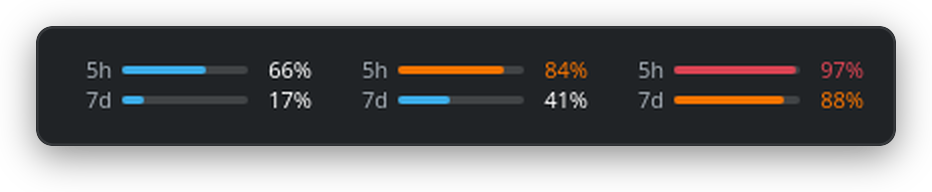
The panel shows two rows, each with a short label, a bar, and a percentage:
- 5h: the current 5-hour session.
- 7d: the weekly limit.
On a vertical panel each percentage sits over its bar. Fonts and colors come from your Plasma theme. A bar turns to the theme’s warning color at the lower alert threshold and to its critical color at the higher one, 80% and 95% by default.
| Action | Effect |
|---|---|
| Left click | Opens the popup |
| Middle click | Asks the daemon for a refresh |
| Hover | Shows a tooltip with every bar and its reset time |
| Right click | Refresh Now, Open Usage Page (claude.ai), and Configure Clanker Watch |
The popup
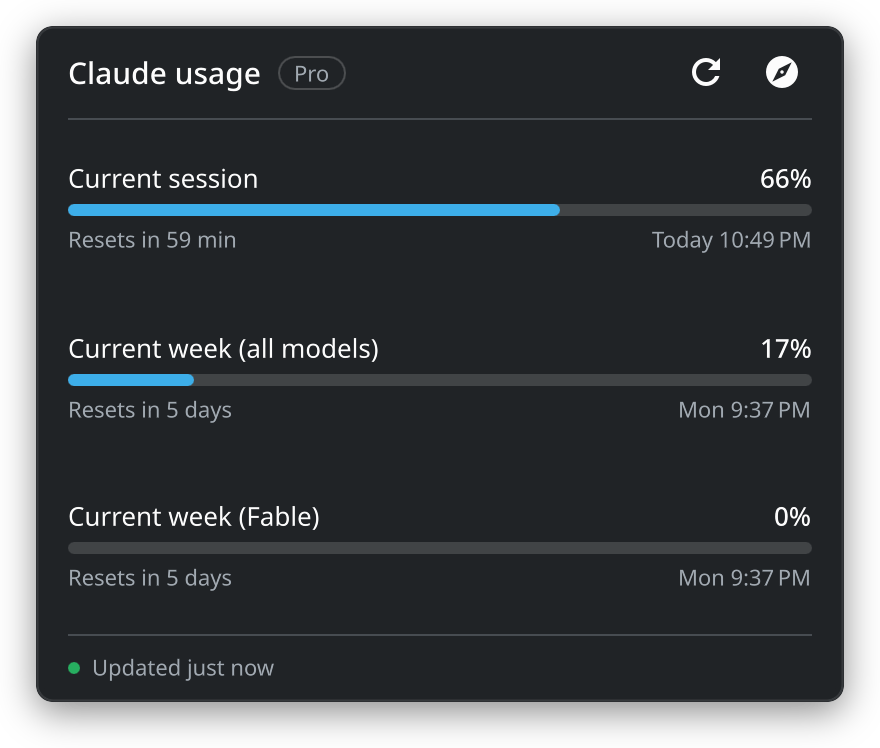
The popup lists every limit the usage endpoint reports, in the order Claude Code’s /usage shows them. That includes the session, the weekly limit for all models, and any per-model weekly limits. Each row shows the label, the percentage used, and when the window resets, such as “Resets in 2 hr 14 min”.
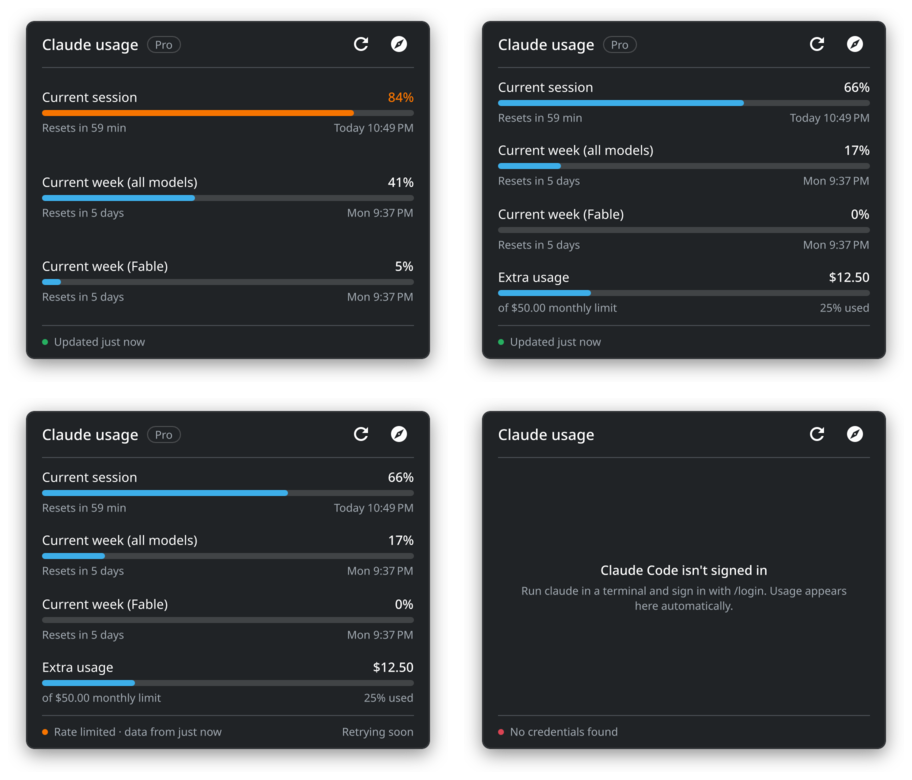
When your plan has extra usage, a last row shows how much of the monthly limit you used, or that the limit was reached.
The header shows your plan, such as “Pro”, and two buttons: Refresh and Open the claude.ai usage page.
The footer tells you how fresh the data is. On the left it shows “Updated 3 min ago”, or the reason the data is older, such as “Rate limited · data from 12 min ago”. On the right it shows when the next check or retry happens. When the whole Claude Code login lapses within three days, it shows “Login expires in …” instead.
When there is nothing trustworthy to show, the bars are replaced by a message saying what is wrong and what to do, such as “Claude Code isn’t signed in”. Troubleshooting explains each one.
The popup also covers warning levels, extra usage, rate limiting, and a missing login:
Refreshing
Opening the popup, middle-clicking the panel, and the Refresh button all ask the daemon for a refresh. The daemon decides whether to act on it. It honors a refresh only when the last fetch and the newest data are at least 2 minutes old, and ignores it while it is backing off or waiting for Claude Code. This keeps the widget from spending the rate limit that Claude Code shares.
Notifications
The daemon sends a desktop notification when a limit crosses an alert threshold. Each threshold alerts once per reset window, even across restarts. When a bar jumps past several thresholds at once you get one notification for the highest, and the critical alert replaces the warning in place.
If Claude Code’s login stays signed out or rejected for 10 minutes, you get one notification telling you to sign in again. A token that is about to expire does not count, because Claude Code refreshes it the next time you use it.
To check how notifications look and that your notification settings let them through:
clankerwatch notify-testDemo mode
clankerwatch demo serves canned usage on the bus and cycles through every state the widget shows, about every 12 seconds: normal, warning, critical, extra usage, rate limited, paused, and signed out. The real engine runs on scripted data, so alerts fire as they would for real. Nothing reads Claude Code’s files or uses the network.
Only one process can own the bus name, so stop the service first:
systemctl --user stop clankerwatch
clankerwatch demo --notify "" --notify-auth=false
The flags turn off notifications for the demo. Press Ctrl+C to stop it, then start the real daemon again with systemctl --user start clankerwatch, or let the widget’s next read of the bus start it. The settings page cannot change settings while the demo runs.
Next
- Configuration to change the data source, the polling intervals, or the alerts.
- How it works for what the daemon reads and when it calls the endpoint.